
Bind Data To DevExpress Gridview ComboBox in CellEditorInitialize Event
The ASPxGridView is one of the most capable data-presentation controls in the DevExpress ASP.NET suite. Out of the box, it gives you sorting, grouping, filtering, paging, and inline editing. Real-world business forms, however, rarely stop at simple text boxes. A very common requirement is a dependent (cascading) dropdown: the options in one editor must change based on a value chosen elsewhere on the page. Now let’s discuss how to Bind Data To DevExpress Gridview ComboBox in CellEditorInitialize Event
A classic example is an order-entry screen where the user selects a Company, and the Product ComboBox inside the grid’s edit row should show only the products that belong to that company. This post walks through how to achieve this cleanly using the grid’s CellEditorInitialize event.
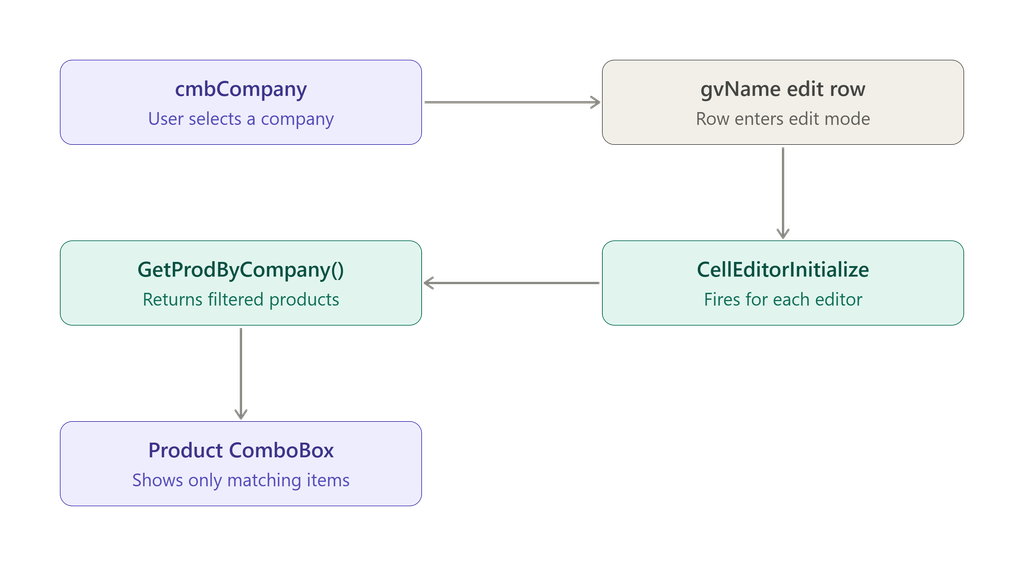
Why CellEditorInitialize?
When a grid row enters edit mode, ASPxGridView creates an editor for each editable column. The CellEditorInitialize event fires once for each editor as it is created, giving you a hook to customize it before it is rendered to the user.
The event handler receives ASPxGridViewEditorEventArgs, which exposes several useful members:
| Property | Description |
|---|---|
e.Column | The grid column the editor belongs to. |
e.Editor | The editor control instance (e.g., ASPxComboBox, ASPxTextBox). |
e.Value | The current value of the cell being edited. |
e.KeyValue | The key value of the row being edited. |
e.VisibleIndex | The visible index of the row being edited. |
This makes the event ideal for tasks such as:
- Assigning or filtering a data source at runtime
- Setting default values for new rows
- Enabling or disabling editors conditionally
- Applying custom styles or validation rules
For dependent dropdowns, it is the right place to rebind a ComboBox with data that depends on the current page state.
The Scenario
Suppose we have:
- A standalone
ASPxComboBoxnamedcmbCompany, placed above the grid, which acts as a filter. - An
ASPxGridViewnamedgvNamewith a column (ColumnName) bound to a Product field, edited through a ComboBox editor. - A data-access class, referenced here as
obj, with a methodGetProdByCompany(string company)that returns the products for the given company.
The goal: when the user edits a row, the Product ComboBox should list only products for the company currently selected in cmbCompany.
The Code
protected void gvName_CellEditorInitialize(object sender, DevExpress.Web.ASPxGridViewEditorEventArgs e)
{
    if (e.Column.FieldName == "ColumnName")
    {
        ASPxComboBox combo = e.Editor as ASPxComboBox;
        combo.DataSource = null;
        combo.DataBind();
        combo.DataSource = obj.GetProdByCompany(Convert.ToString(cmbCompany.Value));
        combo.DataBind();
    }
}
Remember to wire up the handler in your markup:
<dx:ASPxGridView ID="gvName" runat="server"
    OnCellEditorInitialize="gvName_CellEditorInitialize" ... >
    <Columns>
        <dx:GridViewDataComboBoxColumn FieldName="ColumnName" Caption="Product" />
    </Columns>
</dx:ASPxGridView>
Step-by-Step Explanation
1. Target the correct column
if (e.Column.FieldName == "ColumnName")
The event fires for every editor in the edit row. Without this guard, your code would run for each column and could overwrite unrelated editors. Checking e.Column.FieldName ensures that only the Product column is affected.
2. Cast the editor to ASPxComboBox
ASPxComboBox combo = e.Editor as ASPxComboBox;
e.Editor is typed as the base ASPxEditBase, so you must cast it to access ComboBox-specific members such as DataSource and DataBind(). Using the as operator returns null instead of throwing if the editor is a different type, which makes a null check easy to add (see the improvements below).
3. Clear the existing data
combo.DataSource = null;
combo.DataBind();
This step resets the editor, removing any items left over from a previous binding. Because the editor may be reused or pre-populated (for example, by the column’s own DataSourceID), clearing it first guarantees you start from a clean slate and avoids duplicate or stale entries.
4. Bind the filtered data
combo.DataSource = obj.GetProdByCompany(Convert.ToString(cmbCompany.Value));
combo.DataBind();
Here the dependency is established. The currently selected company is read from cmbCompany.Value, converted to a string (Convert.ToString safely returns an empty string if the value is null), and passed to the data-access method. The returned collection becomes the ComboBox’s data source, and DataBind() populates the list.
Recommended Improvements
The snippet works, but a few refinements make it production-ready.
Add a null check
var combo = e.Editor as ASPxComboBox;
if (combo == null) return;
If the column is ever changed to a different editor type, this prevents a NullReferenceException.
Set the field mappings explicitly
combo.ValueField = "ProductId";
combo.TextField = "ProductName";
Without ValueField and TextField, the ComboBox may not know which properties of your data objects to use for the stored value and the displayed text.
Remove the redundant first DataBind()
Setting DataSource = null and immediately calling DataBind() is often unnecessary. Assigning the new data source and binding once is usually sufficient and avoids an extra round of work:
combo.DataSource = obj.GetProdByCompany(Convert.ToString(cmbCompany.Value));
combo.DataBind();
Keep the explicit reset only if you have confirmed that stale items remain in your specific setup.
Handle an empty company selection
string company = Convert.ToString(cmbCompany.Value);
combo.DataSource = string.IsNullOrEmpty(company)
    ? new List<Product>()
    : obj.GetProdByCompany(company);
combo.DataBind();
This avoids querying the database with an empty filter and gives the user an empty list rather than unexpected results.
Common Pitfalls
The event fires on every callback. ASPxGridView uses callbacks for edit operations, so the handler runs each time an editor is initialized. Keep GetProdByCompany efficient, and consider caching results if the same company is requested repeatedly.
cmbCompany.Value must be available during the callback. Because the grid performs a callback rather than a full postback, the value of controls outside the grid may not be what you expect. If cmbCompany is not part of the callback, send its value to the server explicitly, for example via gvName.PerformCallback() with a parameter, or by using the grid’s CustomJSProperties.
Changing the company while a row is in edit mode. If the user changes cmbCompany after the editor has been created, the Product list will not refresh automatically. Handle the company ComboBox’s SelectedIndexChanged client event and either cancel the edit or trigger a callback to reload the editor.
Existing values may no longer be valid. When the filtered list does not contain the row’s current product, the ComboBox will display an empty or raw value. Decide whether to clear the value or add logic that includes the current item.
Alternative Approaches
CellEditorInitialize is a flexible server-side solution, but it is not the only one:
- Column-level ComboBox with
EditItemTemplate: gives you full control over the editor and its client-side events. - Client-side cascading with callbacks: use the ComboBox’s
SelectedIndexChangedevent and a callback to load dependent items without a full row refresh, which provides a smoother user experience. DataSourceIDwithControlParameter: a declarative approach that works well when the dependent value comes from a control on the page.