
Understanding Dynamic Navigation in ASP.NET Core
In this guide, we will explore Dynamic Navigation in ASP.NET Core and understand how modern web applications generate role-based menus dynamically.
When building modern web applications with ASP.NET Core, one of the most important features is navigation. Menus are not just links; they guide users, control access, and improve user experience.
In older applications, developers used static menus. But today, modern web applications require dynamic navigation systems that adapt based on:
- User roles
- Permissions
- Database content
- Application state
What Is a Dynamic Navigation Menu?
A dynamic navigation menu is a menu that is generated at runtime instead of being hardcoded in HTML. Instead of writing this manually:
<li><a href="/Admin">Admin</a></li>The system decides:
- Does this user see the Admin link?
- Should we load menu items from the database?
- Menu change based on login user role?
That decision process is in the backend.
Why Static Menus Are Not Enough Today
In modern applications like:
- SaaS platforms
- E-commerce dashboards
- Learning systems
- Admin portals
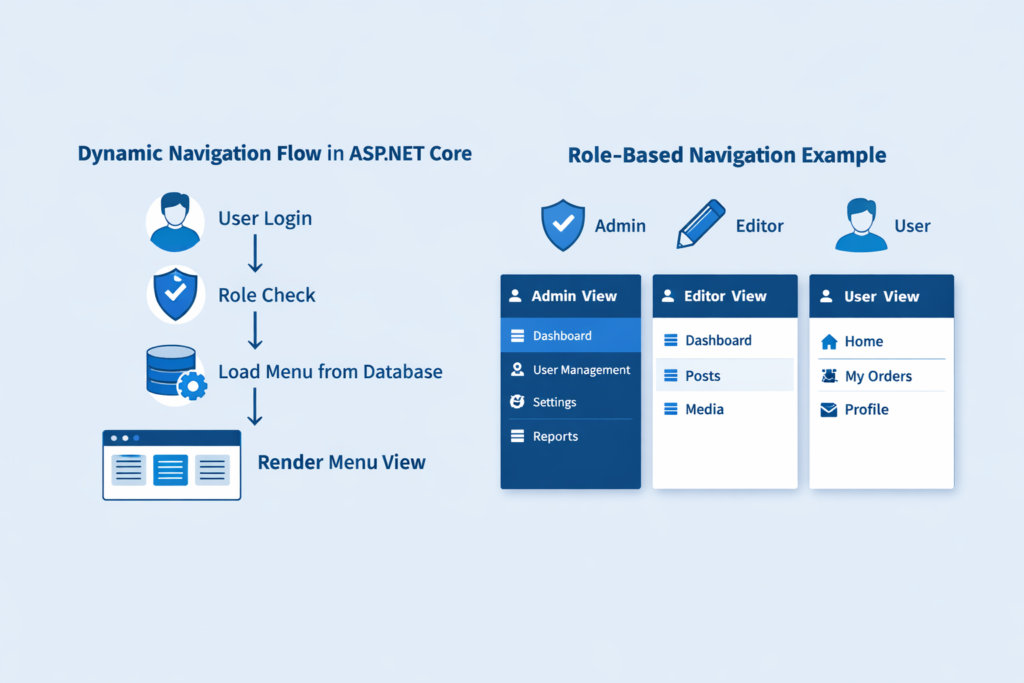
Different users see different menus.
For example:
- Admin sees: Dashboard, Users, Settings
- Editor sees: Posts, Media
- Customer sees: Orders, Profile
Static menus cannot handle this efficiently.
How Dynamic Navigation Works in ASP.NET Core
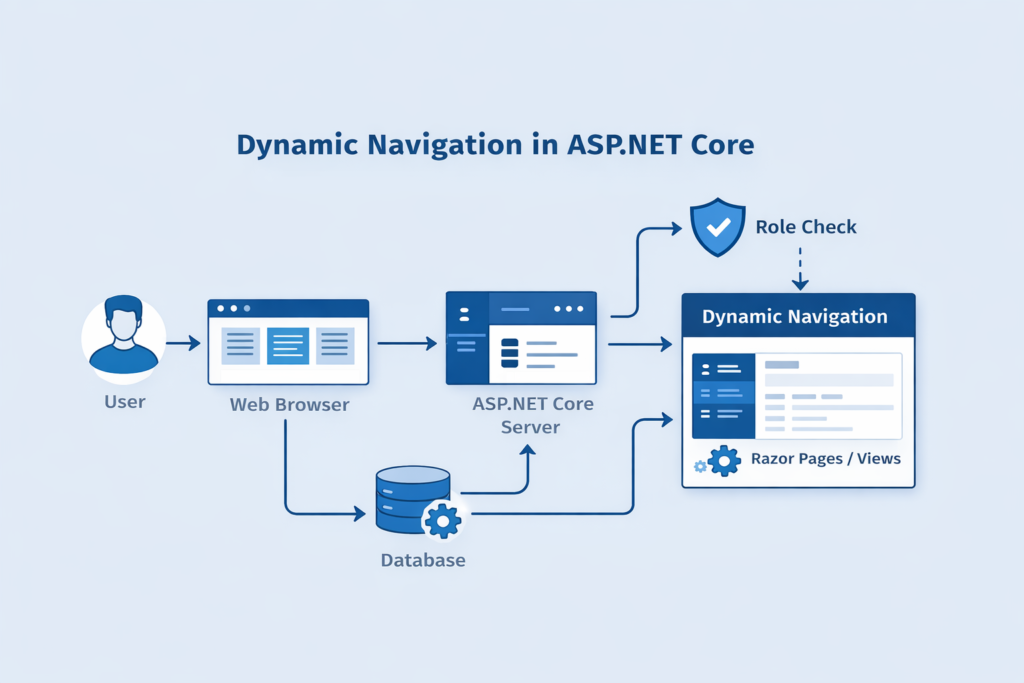
In ASP.NET Core, menus are typically generated using:
- Razor Views
- Partial Views
- View Components
- Middleware-based role checks
- Claims-based authorization
Conceptually, the flow looks like this:
- User logs in
- System identifies user role
- Application loads menu items from the database or configuration
- Razor view renders only the allowed items
Role-Based Navigation
ASP.NET Core uses authorization policies and roles.
Example concept:
- If user role = Admin → show Admin menu
- If user role = User → hide Admin menu
In Razor, it may look like:
@if (User.IsInRole("Admin"))
{
    <li><a href="/Admin">Admin Panel</a></li>
}
Modern Approach
Instead of putting logic directly in views, modern ASP.NET Core apps use:
✔ View Components
They allow reusable navigation blocks.
✔ Database-Driven Menu
Store menu items in the database:
| Id | Title | Url | Role |
|---|---|---|---|
| 1 | Dashboard | /Dashboard | Admin |
| 2 | Orders | /Orders | User |
System loads only relevant rows.
✔ Caching for Performance
Menus infrequently change.
So we use:
- MemoryCache
- Distributed cache (Redis)
This is important for improving speed.
Mobile-First Design Concept
Modern navigation includes:
- Hamburger menus
- Collapsible sidebars
- Responsive layouts (Flexbox / Grid)
ASP.NET Core works well with:
- Bootstrap 5
- Tailwind CSS
Keep navigation:
- Simple
- Clickable
- Touch-friendly
How Dynamic Navigation in ASP.NET Core Works
Step 1: Model (MenuItem.cs)

public class MenuItem
{
    public int Id { get; set; }
    public string Title { get; set; }
    public string Url { get; set; }
    public string Role { get; set; }
}

Step 2: Sample Menu Data

public static class MenuData
{
    public static List<MenuItem> GetMenuItems()
    {
        return new List<MenuItem>
        {
            new MenuItem { Id = 1, Title = "Dashboard", Url = "/Home/Dashboard", Role = "Admin" },
            new MenuItem { Id = 2, Title = "Users", Url = "/Users", Role = "Admin" },
            new MenuItem { Id = 3, Title = "Orders", Url = "/Orders", Role = "User" },
            new MenuItem { Id = 4, Title = "Profile", Url = "/Profile", Role = "User" }
        };
    }
}

Step 3: Razor View (_Layout.cshtml)

@using YourProjectNamespace
@{
    var userRole = User.IsInRole("Admin") ? "Admin" : "User";
    var menuItems = MenuData.GetMenuItems()
                             .Where(m => m.Role == userRole)
                             .ToList();
}

<ul class="nav">
@foreach (var item in menuItems)
{
    <li class="nav-item">
        <a class="nav-link" href="@item.Url">@item.Title</a>
    </li>
}
</ul>
💡 What This Code Does
✔ Checks logged-in user role
✔ Loads matching menu items
✔ Renders navigation dynamically
✔ Keeps UI clean and scalable
When a new role is added, you need to update data, not HTML everywhere.
Instead of putting logic in the layout, use a View Component.
NavigationViewComponent.cs

public class NavigationViewComponent : ViewComponent
{
    public IViewComponentResult Invoke()
    {
        var role = HttpContext.User.IsInRole("Admin") ? "Admin" : "User";

        var menuItems = MenuData.GetMenuItems()
                                .Where(m => m.Role == role)
                                .ToList();

        return View(menuItems);
    }
}

Then in _Layout.cshtml:

@await Component.InvokeAsync("Navigation")
Understanding Dynamic Navigation in ASP.NET Core helps beginners build scalable and secure web applications.