
How to Convert General to Text in Excel in C#
When working with Excel files in C# and ASP.NET applications, you may need to change a cell’s format from General to Text. This is particularly useful when handling data such as employee IDs, telephone numbers, postal codes, product codes, or values that contain leading zeros. Yes your in the right place. Let’s learn how to convert General to Text in Excel in C#
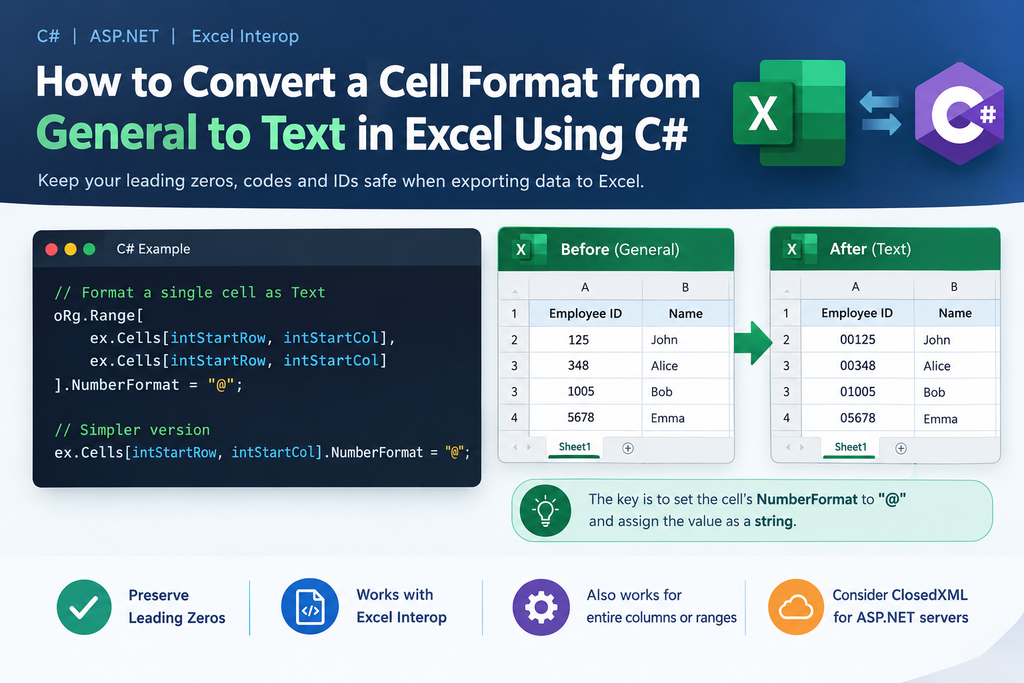
For example, Excel may interpret 00125 as a number and display it as 125. If the value represents an employee ID or product code, removing the leading zeros could cause problems in your application.
Fortunately, if you are using Microsoft Excel Interop in C#, you can change the cell’s number format by setting its NumberFormat property to "@".
1. Convert an Excel Cell from General to Text
If you already have an Excel worksheet and know the row and column indexes of the cell you want to update, you can use the following code.
C# example
oRg.Range[
    ex.Cells[intStartRow, intStartCol],
    ex.Cells[intStartRow, intStartCol]
].NumberFormat = "@";
Here is what the code does:
oRg.Rangeidentifies the Excel cell or range you want to format.ex.Cells[intStartRow, intStartCol]specifies the cell using its row and column indexes.NumberFormat = "@"changes the cell’s number format to Text.
The @ symbol is Excel’s format code for text.
For example, if intStartRow is 2 and intStartCol is 1, the code targets cell A2.
2. A Simpler Way to Format a Single Cell
You do not need to specify the same cell twice when formatting a single cell. You can use a more readable version of the code:
ex.Cells[intStartRow, intStartCol].NumberFormat = "@";This approach is easier to read and maintain, especially when working with Excel files in larger C# applications.
If you are using Microsoft.Office.Interop.Excel, make sure your worksheet variable (ex) refers to a valid Excel worksheet.
3. Example: Convert a Cell to Text in an ASP.NET Application
Imagine you are developing an ASP.NET application that exports employee information to Excel. Employee IDs are stored as text because they may contain leading zeros.
For example, your source data contains:
| Employee ID | Expected Excel value |
|---|---|
00125 | 00125 |
00348 | 00348 |
01005 | 01005 |
If Excel treats these values as numbers, the leading zeros may disappear.
You can format the cell as Text before assigning the value.
using Excel = Microsoft.Office.Interop.Excel;

// Assume worksheet is a valid Excel worksheet.
int row = 2;
int column = 1;

Excel.Range cell = worksheet.Cells[row, column];

// Format the cell as Text first.
cell.NumberFormat = "@";

// Then assign the value as a string.
cell.Value2 = "00125";
Important: Changing the cell format alone does not necessarily convert a value that Excel has already stored as a number into text. If you need to preserve leading zeros, format the cell first and then assign the value as a string.
4. Convert an Entire Column to Text
Sometimes you need to format an entire column rather than a single cell. For example, you may be exporting thousands of product codes from a database.
You can format column A as Text using the following code:
Excel.Range column = worksheet.Columns[1];
column.NumberFormat = "@";
Alternatively, if you only want to format a specific range, such as cells A2 through A100:
Excel.Range range = worksheet.Range["A2", "A100"];
range.NumberFormat = "@";
Formatting only the required range is generally preferable when working with large Excel worksheets.
5. Common Problem: Why Does Excel Still Remove Leading Zeros?
One common mistake is assigning a numeric value to a cell after changing its format.
For example:
cell.NumberFormat = "@";
cell.Value2 = 125;
Although the cell is formatted as Text, the assigned value is still numeric. To preserve the leading zeros, assign a string instead:
cell.NumberFormat = "@";
cell.Value2 = "00125";
This distinction is important when exporting data from SQL Server, processing CSV files, or generating Excel reports from ASP.NET applications.
6. A Reusable C# Helper Method
If your application frequently formats Excel cells as Text, you can create a small helper method to avoid repeating the same code.
using Excel = Microsoft.Office.Interop.Excel;

public static void SetCellAsText(
    Excel.Worksheet worksheet,
    int row,
    int column,
    string value)
{
    Excel.Range cell = worksheet.Cells[row, column];

    cell.NumberFormat = "@";
    cell.Value2 = value;
}
You can call the method like this:
SetCellAsText(worksheet, 2, 1, "00125");
SetCellAsText(worksheet, 3, 1, "00348");
SetCellAsText(worksheet, 4, 1, "01005");
This keeps your code cleaner and makes the formatting logic reusable across different parts of your application.
7. Important Considerations for ASP.NET Developers
Microsoft Excel Interop relies on Microsoft Excel being installed and is generally unsuitable for server-side ASP.NET applications running in IIS. Microsoft does not recommend or support unattended server-side Office automation because it can cause reliability and scalability problems.
If you need to generate Excel files on a web server, consider using a library such as ClosedXML or EPPlus.
For example, using ClosedXML:
using ClosedXML.Excel;

using var workbook = new XLWorkbook();
var worksheet = workbook.Worksheets.Add("Employees");

var cell = worksheet.Cell("A2");
cell.Style.NumberFormat.Format = "@";
cell.Value = "00125";

workbook.SaveAs("Employees.xlsx");
This creates an Excel workbook and stores the employee ID as text without requiring Microsoft Excel to run on the server.
Conclusion
Converting an Excel cell from General to Text in C# is straightforward. When using Excel Interop, the key line is:
cell.NumberFormat = "@";For reliable results, especially when preserving leading zeros, set the format before assigning the value and make sure you assign the value as a string.
If you are developing an ASP.NET application that generates Excel files on a server, consider using a dedicated Excel library such as ClosedXML instead of Excel Interop.
SEO details for your blog
SEO title: How to Convert General to Text in Excel Using C#
Focus keyword: Convert General to Text in Excel C#
Suggested URL slug: convert-general-to-text-excel-csharp
Meta description: Learn how to convert Excel cells from General to Text using C# and ASP.NET. Includes Excel Interop examples, leading-zero fixes, and a ClosedXML alternative.
Suggested tags: C#, ASP.NET, Excel Interop, Excel Formatting, ClosedXML, .NET Development
Here is a rewritten, human-friendly, SEO-focused article for your Dev Tech Hub blog, written from a software engineer’s perspective with practical C# and ASP.NET examples.
SEO article · C# · ASP.NET · Excel Interop
How to Convert a Cell Format from General to Text in Excel Using C#
When working with Excel files in C# and ASP.NET applications, you may need to change a cell’s format from General to Text. This is particularly useful when handling data such as employee IDs, telephone numbers, postal codes, product codes, or values that contain leading zeros.
For example, Excel may interpret 00125 as a number and display it as 125. If the value represents an employee ID or product code, removing the leading zeros could cause problems in your application.
Fortunately, if you are using Microsoft Excel Interop in C#, you can change the cell’s number format by setting its NumberFormat property to "@".
1. Convert an Excel Cell from General to Text
If you already have an Excel worksheet and know the row and column indexes of the cell you want to update, you can use the following code.
C# example
oRg.Range[
    ex.Cells[intStartRow, intStartCol],
    ex.Cells[intStartRow, intStartCol]
].NumberFormat = "@";
Here is what the code does:
oRg.Rangeidentifies the Excel cell or range you want to format.ex.Cells[intStartRow, intStartCol]specifies the cell using its row and column indexes.NumberFormat = "@"changes the cell’s number format to Text.
The @ symbol is Excel’s format code for text.
For example, if intStartRow is 2 and intStartCol is 1, the code targets cell A2.
2. A Simpler Way to Format a Single Cell
You do not need to specify the same cell twice when formatting a single cell. You can use a more readable version of the code:
ex.Cells[intStartRow, intStartCol].NumberFormat = "@";This approach is easier to read and maintain, especially when working with Excel files in larger C# applications.
If you are using Microsoft.Office.Interop.Excel, make sure your worksheet variable (ex) refers to a valid Excel worksheet.
3. Example: Convert a Cell to Text in an ASP.NET Application
Imagine you are developing an ASP.NET application that exports employee information to Excel. Employee IDs are stored as text because they may contain leading zeros.
For example, your source data contains:
| Employee ID | Expected Excel value |
|---|---|
00125 | 00125 |
00348 | 00348 |
01005 | 01005 |
If Excel treats these values as numbers, the leading zeros may disappear.
You can format the cell as Text before assigning the value.
using Excel = Microsoft.Office.Interop.Excel;

// Assume worksheet is a valid Excel worksheet.
int row = 2;
int column = 1;

Excel.Range cell = worksheet.Cells[row, column];

// Format the cell as Text first.
cell.NumberFormat = "@";

// Then assign the value as a string.
cell.Value2 = "00125";
Important: Changing the cell format alone does not necessarily convert a value that Excel has already stored as a number into text. If you need to preserve leading zeros, format the cell first and then assign the value as a string.
4. Convert an Entire Column to Text
Sometimes you need to format an entire column rather than a single cell. For example, you may be exporting thousands of product codes from a database.
You can format column A as Text using the following code:
Excel.Range column = worksheet.Columns[1];
column.NumberFormat = "@";
Alternatively, if you only want to format a specific range, such as cells A2 through A100:
Excel.Range range = worksheet.Range["A2", "A100"];
range.NumberFormat = "@";
Formatting only the required range is generally preferable when working with large Excel worksheets.
5. Common Problem: Why Does Excel Still Remove Leading Zeros?
One common mistake is assigning a numeric value to a cell after changing its format.
For example:
cell.NumberFormat = "@";
cell.Value2 = 125;
Although the cell is formatted as Text, the assigned value is still numeric. To preserve the leading zeros, assign a string instead:
cell.NumberFormat = "@";
cell.Value2 = "00125";
This distinction is important when exporting data from SQL Server, processing CSV files, or generating Excel reports from ASP.NET applications.
6. A Reusable C# Helper Method
If your application frequently formats Excel cells as Text, you can create a small helper method to avoid repeating the same code.
using Excel = Microsoft.Office.Interop.Excel;

public static void SetCellAsText(
    Excel.Worksheet worksheet,
    int row,
    int column,
    string value)
{
    Excel.Range cell = worksheet.Cells[row, column];

    cell.NumberFormat = "@";
    cell.Value2 = value;
}
You can call the method like this:
SetCellAsText(worksheet, 2, 1, "00125");
SetCellAsText(worksheet, 3, 1, "00348");
SetCellAsText(worksheet, 4, 1, "01005");
This keeps your code cleaner and makes the formatting logic reusable across different parts of your application.
7. Important Considerations for ASP.NET Developers
Microsoft Excel Interop relies on Microsoft Excel being installed and is generally unsuitable for server-side ASP.NET applications running in IIS. Microsoft does not recommend or support unattended server-side Office automation because it can cause reliability and scalability problems.
If you need to generate Excel files on a web server, consider using a library such as ClosedXML or EPPlus.
For example, using ClosedXML:
using ClosedXML.Excel;

using var workbook = new XLWorkbook();
var worksheet = workbook.Worksheets.Add("Employees");

var cell = worksheet.Cell("A2");
cell.Style.NumberFormat.Format = "@";
cell.Value = "00125";

workbook.SaveAs("Employees.xlsx");
This creates an Excel workbook and stores the employee ID as text without requiring Microsoft Excel to run on the server.