
How to Export MS SQL Image Column Binary Data: Free Guide
SQL Server’s text, ntext, and image data types hold values too large for char, varchar, binary, or varbinary columns. Legacy databases often store pictures, PDFs, and other files in an image column. Sooner or later you need to get those files back out as real files on disk.
This article shows how to export MS SQL image column binary data to a file using T-SQL and the ADODB.Stream COM object. It also covers the permissions you need, the mistakes that break the script, and some alternatives.
Prerequisites
Before running the export, prepare the following.
1. Create and share the export folder
Create the destination folder, for example \\ServerName\images, and share it if it is on a network location.
2. Grant folder permissions
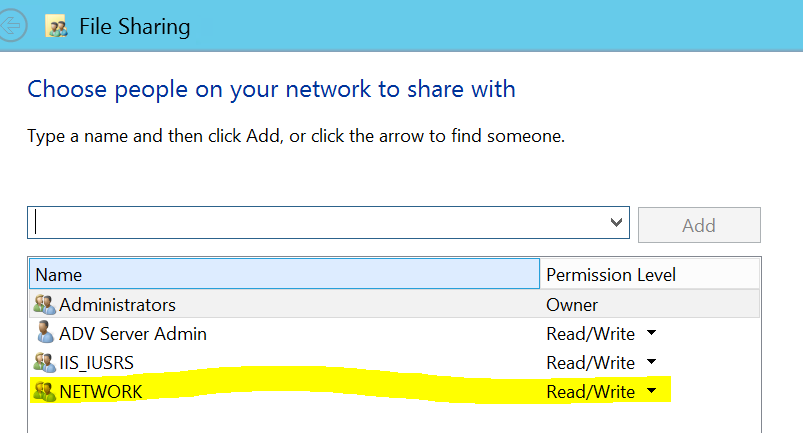
The file is written by the SQL Server service account, not by your own login. Give that account Modify (write) permission on both the share and the NTFS folder. If the permissions are missing, the export fails with an access error.
3. Enable OLE Automation Procedures
The script uses sp_OACreate and related procedures, which are disabled by default. Enable them once:
sql
EXEC sp_configure 'show advanced options', 1;
RECONFIGURE;
EXEC sp_configure 'Ole Automation Procedures', 1;
RECONFIGURE;
Enabling this feature increases the server’s attack surface, so only do it on servers where you can accept that, and consider turning it off again after the export.
The Export Script
The original snippet had a few problems that stop it from running: the @Obj variable was never declared, a closing parenthesis was missing in the SELECT, and the backslashes in the UNC path were lost. Here is a corrected version:
sql
DECLARE @ImageData   VARBINARY(MAX),
        @Obj         INT,
        @varFileName VARCHAR(200),
        @varLocPath  VARCHAR(500);

SET @varFileName = 'AAA.JPG';
SET @varLocPath  = '\\ServerName\images\' + @varFileName;

-- Read the image column as binary data
SELECT @ImageData = CONVERT(VARBINARY(MAX), bytImage)
FROM   dbo.YourTable
WHERE  YourCondition;

-- Write the binary data to a file using ADODB.Stream
EXEC sp_OACreate 'ADODB.Stream', @Obj OUTPUT;
EXEC sp_OASetProperty @Obj, 'Type', 1;                       -- 1 = binary
EXEC sp_OAMethod @Obj, 'Open';
EXEC sp_OAMethod @Obj, 'Write', NULL, @ImageData;
EXEC sp_OAMethod @Obj, 'SaveToFile', NULL, @varLocPath, 2;   -- 2 = overwrite
EXEC sp_OAMethod @Obj, 'Close';
EXEC sp_OADestroy @Obj;
Replace dbo.YourTable, bytImage, and YourCondition with your own table, column, and filter.
Step-by-Step Explanation
1. Declare the variables
sql
DECLARE @ImageData VARBINARY(MAX), @Obj INT, @varFileName VARCHAR(200), @varLocPath VARCHAR(500);@ImageDataholds the binary content.@Objstores the handle of the COM object. It must be anINT, and it must be declared, or the script fails.@varFileNameand@varLocPathbuild the full destination path.
2. Build the file path
sql
SET @varFileName = 'AAA.JPG';
SET @varLocPath  = '\\ServerName\images\' + @varFileName;
Use a full UNC path (two leading backslashes) or a local path such as C:\Export\. Make sure the folder ends with a backslash before the file name is appended. Choose the file extension that matches the stored content, such as .jpg, .png, or .pdf.
3. Read the image column
sql
SELECT @ImageData = CONVERT(VARBINARY(MAX), bytImage)
FROM dbo.YourTable
WHERE YourCondition;
The image column is converted to VARBINARY(MAX) so it can be handled as a variable. Your WHERE clause must match exactly one row. If it matches several, the variable receives the value from the last row read, which is rarely what you want.
4. Create the ADODB.Stream object
sql
EXEC sp_OACreate 'ADODB.Stream', @Obj OUTPUT;This creates the COM object that knows how to write streams to disk and returns its handle in @Obj.
5. Set the stream type to binary
sql
EXEC sp_OASetProperty @Obj, 'Type', 1;Type = 1 means binary data. Using the text type (2) would corrupt the file.
6. Open the stream and write the data
sql
EXEC sp_OAMethod @Obj, 'Open';
EXEC sp_OAMethod @Obj, 'Write', NULL, @ImageData;
Open initializes an empty stream, and Write fills it with the binary data you read from the table.
7. Save the file
sql
EXEC sp_OAMethod @Obj, 'SaveToFile', NULL, @varLocPath, 2;SaveToFile writes the stream to the path. The second argument is the save option: 1 creates the file and fails if it already exists, and 2 overwrites an existing file.
8. Close and destroy the object
sql
EXEC sp_OAMethod @Obj, 'Close';
EXEC sp_OADestroy @Obj;
Always clean up. Leaving COM objects open can leak resources on the server.
Export Many Files in a Loop
To export every row, use a cursor or loop and build each file name from a key column:
sql
DECLARE @Id INT, @Obj INT, @Data VARBINARY(MAX), @Path VARCHAR(500);

DECLARE cur CURSOR FAST_FORWARD FOR
    SELECT Id, CONVERT(VARBINARY(MAX), bytImage) FROM dbo.YourTable;

OPEN cur;
FETCH NEXT FROM cur INTO @Id, @Data;

WHILE @@FETCH_STATUS = 0
BEGIN
    SET @Path = '\\ServerName\images\File_' + CAST(@Id AS VARCHAR(20)) + '.jpg';

    EXEC sp_OACreate 'ADODB.Stream', @Obj OUTPUT;
    EXEC sp_OASetProperty @Obj, 'Type', 1;
    EXEC sp_OAMethod @Obj, 'Open';
    EXEC sp_OAMethod @Obj, 'Write', NULL, @Data;
    EXEC sp_OAMethod @Obj, 'SaveToFile', NULL, @Path, 2;
    EXEC sp_OAMethod @Obj, 'Close';
    EXEC sp_OADestroy @Obj;

    FETCH NEXT FROM cur INTO @Id, @Data;
END

CLOSE cur;
DEALLOCATE cur;
Common Errors and Fixes
“Must declare the scalar variable @Obj.” Add @Obj INT to your DECLARE statement.
“SQL Server blocked access to procedure ‘sys.sp_OACreate’.” OLE Automation Procedures are disabled. Run the sp_configure commands shown earlier.
Access denied or file not saved. The SQL Server service account lacks write permission on the folder or share. Grant it Modify rights.
The exported file is empty or corrupted. Check that Type is set to 1, the WHERE clause returns the right row, and the file extension matches the real content. Also test with your largest files, because OLE automation calls can behave unreliably with very large values.
Path not found. Verify the UNC path, the trailing backslash, and that the SQL Server machine can reach the share.
Alternatives Worth Considering
The sp_OA approach is common in older systems, but it has drawbacks: it requires a server-wide security setting and can struggle with large files. Consider these options as well:
- PowerShell or .NET: read the bytes with
SqlCommandand write them withFile.WriteAllBytes. Nothing needs to be enabled on the server. - SSIS: the Export Column transformation is built for exactly this task.
- bcp: can export binary data when used with a suitable format file.
Here is a short PowerShell example:
powershell
$conn = New-Object System.Data.SqlClient.SqlConnection "Server=ServerName;Database=YourDb;Integrated Security=True"
$cmd  = $conn.CreateCommand()
$cmd.CommandText = "SELECT bytImage FROM dbo.YourTable WHERE YourCondition"

$conn.Open()
$bytes = $cmd.ExecuteScalar()
$conn.Close()

[System.IO.File]::WriteAllBytes("C:\Export\AAA.JPG", $bytes)
A Note on the image Data Type
Microsoft has deprecated text, ntext, and image, and recommends varchar(max), nvarchar(max), and varbinary(max) instead. If you control the schema, migrating the column makes exports and many other operations simpler:
sql
ALTER TABLE dbo.YourTable ALTER COLUMN bytImage VARBINARY(MAX);Back up your data and test on a copy first.