
Set DevExpress GridView Column Width When Exporting to Excel
When exporting data from a DevExpress ASP.NET MVC GridView to Excel, you may notice that the column widths in the exported file do not match your expectations. Long text values, such as customer names, department names, or descriptions, may appear truncated, making the exported report difficult to read. Let’s discuss how to set DevExpress GridView Column Width When Exporting to Excel
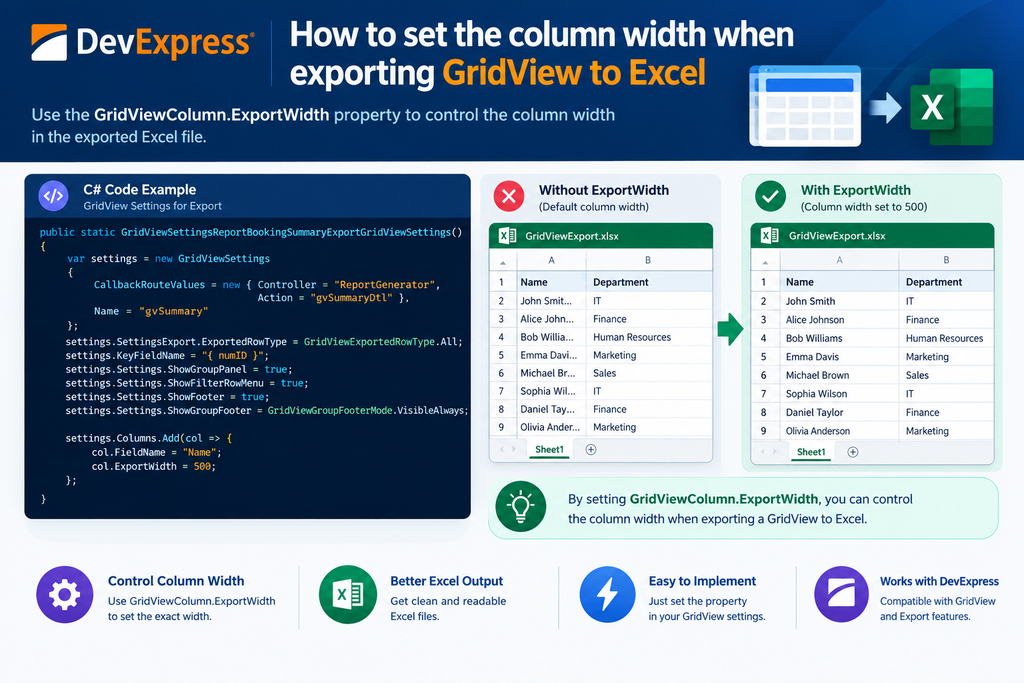
As a software engineer, I encountered a simple way to control this behavior using the GridViewColumn.ExportWidth property. Instead of manually adjusting column widths in Excel after every export, you can configure the desired width directly in your GridView settings.
In this article, we will look at how to use ExportWidth, how to apply it to a specific column, and how to configure multiple columns when generating Excel reports.
The Problem: Incorrect Column Widths in Excel Export
Suppose you have a DevExpress GridView displaying booking summary data. One of the columns contains customer or employee names.
When you export the GridView to Excel, the column might be too narrow to display the full value.
For example:
| Name in the GridView | Excel export without a suitable width |
|---|---|
| John Smith | John Smi… |
| Alice Johnson | Alice Joh… |
| Michael Brown | Michael B… |
This can make reports harder to read, particularly when users rely on exported Excel files for further analysis.
Fortunately, DevExpress provides the ExportWidth property to control the width of a column during export.
Solution: Use the GridViewColumn.ExportWidth Property
The key is to set the ExportWidth property when defining the GridView column.
settings.Columns.Add(col =>
{
    col.FieldName = "Name";
    col.ExportWidth = 500;
});
In this example:
FieldNameidentifies the data field displayed in the column.ExportWidthspecifies the column width used during export.500is the width value configured for this column.
This allows you to control the exported column width without requiring users to adjust it manually in Excel.
Note: ExportWidth is a DevExpress export-specific setting. Its exact behavior and width interpretation can depend on the DevExpress version and export format, so verify the resulting Excel file in your application.
Complete Example: Configure GridView Settings for Excel Export
Let’s apply the solution to a booking summary report using DevExpress ASP.NET MVC GridView.
The following example is based on the GridView settings structure from the original implementation.
public static GridViewSettings
    ReportBookingSummaryExportGridViewSettings()
{
    var settings = new GridViewSettings
    {
        CallbackRouteValues = new
        {
            Controller = "ReportGenerator",
            Action = "gvSummaryDtl"
        },
        Name = "gvSummary"
    };

    settings.SettingsExport.ExportedRowType =
        GridViewExportedRowType.All;

    settings.KeyFieldName = "numID";

    settings.Settings.ShowGroupPanel = true;
    settings.Settings.ShowFilterRowMenu = true;
    settings.Settings.ShowFooter = true;

    settings.Settings.ShowGroupFooter =
        GridViewGroupFooterMode.VisibleAlways;

    settings.Columns.Add(col =>
    {
        col.FieldName = "Name";
        col.ExportWidth = 500;
    });

    return settings;
}
How the code works
- Create the GridView settings: The
GridViewSettingsobject defines the configuration for the GridView. - Configure the export:
ExportedRowTypespecifies which row types are included in the export. - Set the key field:
KeyFieldNameidentifies the key field for the data. - Configure the GridView features: Grouping, filter-row menu, and footer settings are enabled.
- Set the export width:
col.ExportWidth = 500configures the width of theNamecolumn during export.
The important part is the final column configuration. You can apply the same approach to other columns that need a specific width in the exported Excel report.
Set Different Widths for Multiple Columns
In real-world applications, a report often contains several columns with different data requirements. For example, a customer name needs more space than an ID or status field.
You can configure each column individually:
settings.Columns.Add(col =>
{
    col.FieldName = "BookingID";
    col.ExportWidth = 100;
});

settings.Columns.Add(col =>
{
    col.FieldName = "Name";
    col.ExportWidth = 250;
});

settings.Columns.Add(col =>
{
    col.FieldName = "Description";
    col.ExportWidth = 500;
});

settings.Columns.Add(col =>
{
    col.FieldName = "Status";
    col.ExportWidth = 120;
});
This configuration gives the exported report a more practical layout:
| Column | Configured export width |
|---|---|
| Booking ID | 100 |
| Name | 250 |
| Description | 500 |
| Status | 120 |
These values are examples. Adjust them based on your data and the resulting Excel output.
Common Mistakes to Avoid
1. Setting the wrong property
Changing a column’s on-screen width is not necessarily the same as configuring its export width. If your goal is to control the Excel output, check the ExportWidth property.
2. Using a width that is too small
Even when ExportWidth is configured, the chosen value may not be enough for long descriptions or names. Test the exported workbook with realistic data.
3. Forgetting to configure each required column
Setting the width for one column does not automatically configure every other column. Define ExportWidth separately for columns that need specific widths.
4. Assuming every export format behaves identically
DevExpress supports different export options, and behavior can vary depending on the export method and version. Confirm the result using the specific Excel export functionality in your application.